टचपॅडसह क्लिक, ओढा, किंवा स्क्रोल करा
फक्त टचपॅडचा वापर करून, विना हार्डवेअर बटन तुम्ही क्लिक, डबल-क्लिक, ओढा, आणि स्क्रोल करू शकता.
Touchpad gestures are covered separately.
Secondary click
You can customize your touchpad's secondary click (right click) action.
Two-Finger Push: Push anywhere with 2 fingers.
Corner Push: Push with a single finger in the corner.
Select Secondary Click Method
Open the Activities overview and start typing Mouse & Touchpad.
Click Mouse & Touchpad to open the panel.
Click Touchpad in the top bar.
In the Clicking section, choose the preferred click method.
टॅपकरिता क्लिक करा

बटनाचा वापर करण्याऐवजी, क्लिककरिता टचपॅड टॅप करा.
क्लिक करण्यासाठी, टचपॅडवर टॅप करा.
डबल-क्लिक साठी, दोन वेळा टॅप करा.
To drag an item, double-tap but don’t lift your finger after the second tap. Drag the item where you want it, then lift your finger to drop.
टचपॅड बहु-फिंगर टॅप्स समर्थीत करून, एकाचवेळी दोन बोटांना टॅप करताना उजवी-क्लिक द्या. नाहीतर, उजव्या-क्लिककरिता तुम्हाला हार्डवेअर बटनांचाच वापर करावा लागेल. दुसऱ्या माउस बटनविना उजव्या-क्लिकिंग पद्धतीकरिता उजवा माउस क्लिक करुन बघा पहा.
टचपॅड एकापेक्षाजास्त फिंगर टॅप्सकरिता समर्थन पुरवत असल्यास, एकाचवेळी तीन बोट टॅप करण्यासाठी मधली-क्लिक द्या.
When tapping or dragging with multiple fingers, make sure your fingers are spread far enough apart. If your fingers are too close, your computer may think they’re a single finger.
Enable Tap to Click
Open the Activities overview and start typing Mouse & Touchpad.
Click on Mouse & Touchpad to open the panel.
-
In the Touchpad section, make sure the Touchpad switch is set to on.
प्रणालीकडे टचपॅड असल्यावरच फक्त टचपॅड विभाग आढळतो.
Switch the Tap to Click switch to on.
दोन बोटांचा स्क्रोल
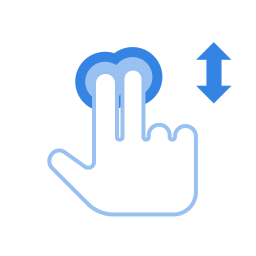
दोन बोटांचा वापर करून आपण स्क्रोल करू शकता.
When this is selected, tapping and dragging with one finger will work as normal, but if you drag two fingers across any part of the touchpad, it will scroll instead. Move your fingers between the top and bottom of your touchpad to scroll up and down, or move your fingers across the touchpad to scroll sideways. Be careful to space your fingers a bit apart. If your fingers are too close together, they just look like one big finger to your touchpad.
सर्व टचपॅड्सकरिता दोन-बोटी स्क्रोलिंग कार्य करणार नाही.
Enable Two-finger Scrolling
Open the Activities overview and start typing Mouse & Touchpad.
Click on Mouse & Touchpad to open the panel.
In the Touchpad section, make sure the Touchpad switch is set to on.
Switch the Two-finger Scrolling switch to on.
Edge scroll
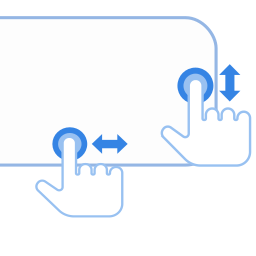
Use edge scroll if you want to scroll with only one finger.
Your touchpad's specifications should give the exact location of the sensors for edge scrolling. Typically, the vertical scroll sensor is on a touchpad's right-hand side. The horizontal sensor is on the touchpad's bottom edge.
To scroll vertically, drag your finger up and down the right-hand edge of the touchpad. To scroll horizontally, drag your finger across the bottom edge of the touchpad.
Edge scrolling may not work on all touchpads.
Enable Edge Scrolling
Open the Activities overview and start typing Mouse & Touchpad.
Click on Mouse & Touchpad to open the panel.
In the Touchpad section, make sure the Touchpad switch is set to on.
Switch the Edge Scrolling switch to on.
स्वाभाविक स्क्रोलिंग
टचपॅडचा वापर करून अंतर्भुत माहितीला अंतर्भुत माहिती ओढून टाकणे शक्य आहे.
Open the Activities overview and start typing Mouse & Touchpad.
Click on Mouse & Touchpad to open the panel.
In the Touchpad section, make sure that the Touchpad switch is set to on.
Switch the Natural Scrolling switch to on.
This feature is also known as Reverse Scrolling.