کلیک، کشیدن یا لغزش با صفحهلمسی
You can click, double-click, drag, and scroll using only your touchpad, without separate hardware buttons.
Touchpad gestures are covered separately.
Secondary click
You can customize your touchpad's secondary click (right click) action.
Two-Finger Push: Push anywhere with 2 fingers.
Corner Push: Push with a single finger in the corner.
Select Secondary Click Method
نمای کلی فعّالیتها را گشوده و شروع به نوشتن موشی و صفحهلمسی کنید.
برای گشودن تابلو موشی و صفحهلمسی را بزنید.
در نوار بالایی صفحهلمسی را بزنید.
در بخش کلیک کردن، روش کلیک ترجیحی را بگزینید.
ضربه برای کلیک

You can tap your touchpad to click instead of using a button.
برای کلیک، روی صفحهلمسی بزنید.
برای دوبار کلیک، دو بار بزنید.
To drag an item, double-tap but don’t lift your finger after the second tap. Drag the item where you want it, then lift your finger to drop.
If your touchpad supports multi-finger taps, right-click by tapping with two fingers at once. Otherwise, you still need to use hardware buttons to right-click. See شبیه سازی یک کلیک راست موشی for a method of right-clicking without a second mouse button.
If your touchpad supports multi-finger taps, middle-click by tapping with three fingers at once.
When tapping or dragging with multiple fingers, make sure your fingers are spread far enough apart. If your fingers are too close, your computer may think they’re a single finger.
به کار انداختن ضربه برای کلیک
نمای کلی فعّالیتها را گشوده و شروع به نوشتن موشی و صفحهلمسی کنید.
برای گشودن تابلو موشی و صفحهلمسی را بزنید.
-
In the Touchpad section, make sure the Touchpad switch is set to on.
The Touchpad section only appears if your system has a touchpad.
کلید ضربه برای کلیک را روشن کنید.
لغزش دو انگشتی
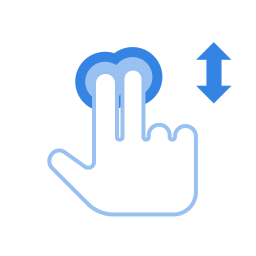
You can scroll using your touchpad using two fingers.
When this is selected, tapping and dragging with one finger will work as normal, but if you drag two fingers across any part of the touchpad, it will scroll instead. Move your fingers between the top and bottom of your touchpad to scroll up and down, or move your fingers across the touchpad to scroll sideways. Be careful to space your fingers a bit apart. If your fingers are too close together, they just look like one big finger to your touchpad.
Two-finger scrolling may not work on all touchpads.
به کار انداختن لغزش دو انگشتی
نمای کلی فعّالیتها را گشوده و شروع به نوشتن موشی و صفحهلمسی کنید.
برای گشودن تابلو موشی و صفحهلمسی را بزنید.
In the Touchpad section, make sure the Touchpad switch is set to on.
کلید لغزش دو انگشتی را روشن کنید.
لغزش لبهای
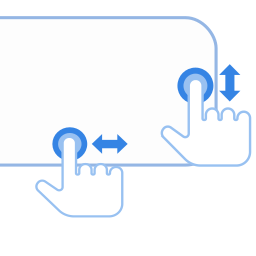
Use edge scroll if you want to scroll with only one finger.
Your touchpad's specifications should give the exact location of the sensors for edge scrolling. Typically, the vertical scroll sensor is on a touchpad's right-hand side. The horizontal sensor is on the touchpad's bottom edge.
To scroll vertically, drag your finger up and down the right-hand edge of the touchpad. To scroll horizontally, drag your finger across the bottom edge of the touchpad.
Edge scrolling may not work on all touchpads.
به کار انداختن لغزش لبهای
نمای کلی فعّالیتها را گشوده و شروع به نوشتن موشی و صفحهلمسی کنید.
برای گشودن تابلو موشی و صفحهلمسی را بزنید.
In the Touchpad section, make sure the Touchpad switch is set to on.
کلید لغزش لبهای را روشن کنید.
لغرش طبیعی
You can drag content as if sliding a physical piece of paper using the touchpad.
نمای کلی فعّالیتها را گشوده و شروع به نوشتن موشی و صفحهلمسی کنید.
برای گشودن تابلو موشی و صفحهلمسی را بزنید.
In the Touchpad section, make sure that the Touchpad switch is set to on.
کلید لغزش طبیعی را روشن کنید.
This feature is also known as Reverse Scrolling.